The time tracker that lives in Edge’s sidebar
Hourcraft is a free time tracker built for Microsoft Edge’s sidebar — docked beside the page you’re working on, not lost among your tabs. Start a task in one tap, watch the toolbar badge count the minutes, and get back to work. Every session lands in the same history as the Hourcraft web app, and you can start without an account.
Get it for Microsoft Edge — it’s free Add to Chrome insteadUsing Chrome? See the Chrome extension →
Put Hourcraft in the sidebar in three clicks
Edge keeps sidebar extensions behind its Extensions hub rather than pinning them automatically, so the first minute is about finding the button. After that it stays where you put it.
- Get Hourcraft from Microsoft Edge Add-ons — free, no credit card, no account needed to start.
- Click the Extensions button on Edge’s toolbar (the puzzle piece) and click the Open in sidebar icon next to Hourcraft. Prefer a toolbar icon? Choose Show in toolbar, then right-click the Hourcraft icon and pick Open in sidebar.
- Tap a task. That’s it — the badge starts counting. Choose Start tracking — no account needed the first time, or Sign in with your email if you want your hours on other devices.
Want a keyboard shortcut? Edge lets you assign one to any extension at edge://extensions/shortcuts — set one for Hourcraft there and the sidebar opens without a click. Edge reserves several default combinations for its own features, so choose one that is free on your keyboard.
Beside your tabs, in Edge’s sidebar
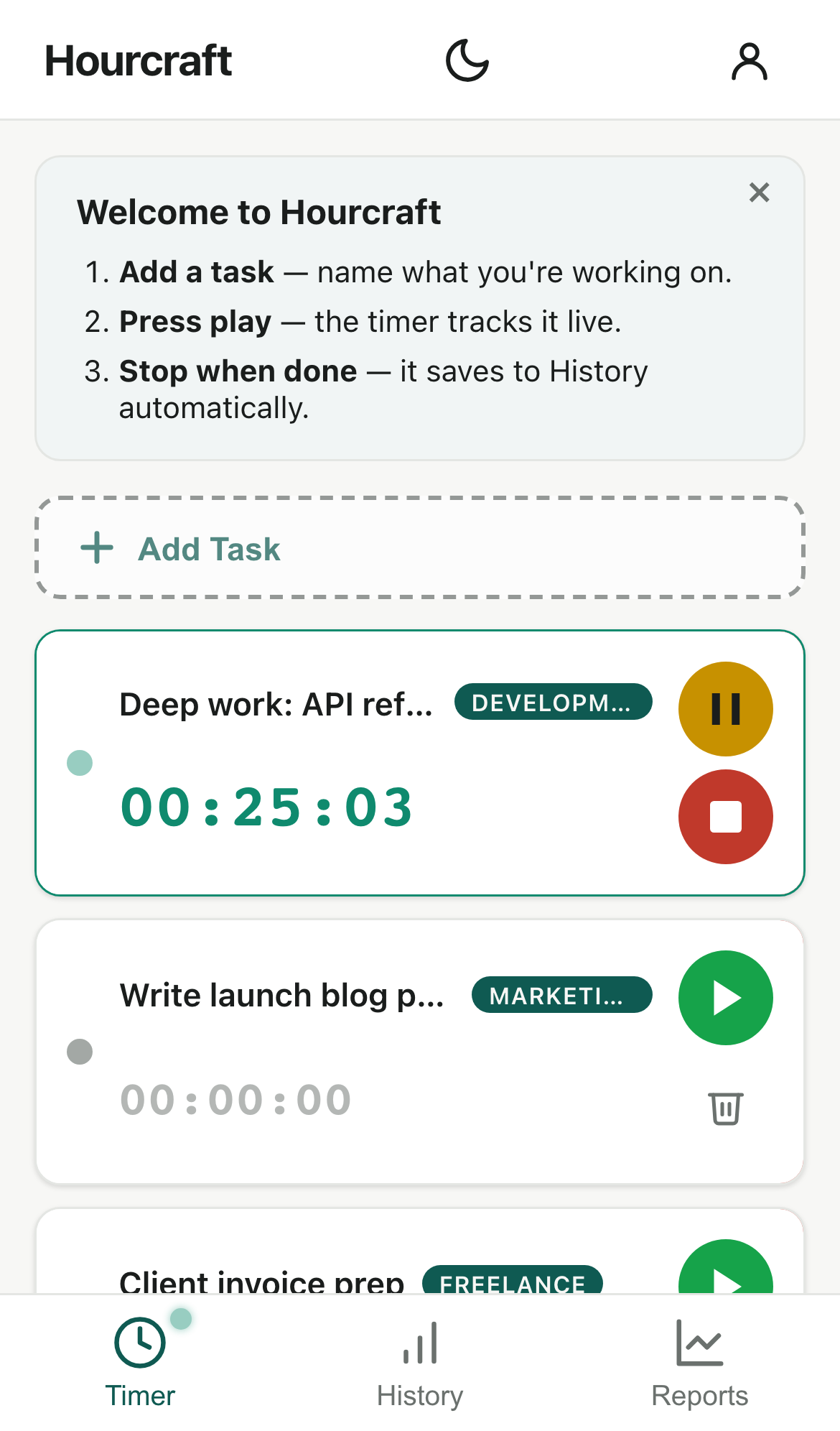
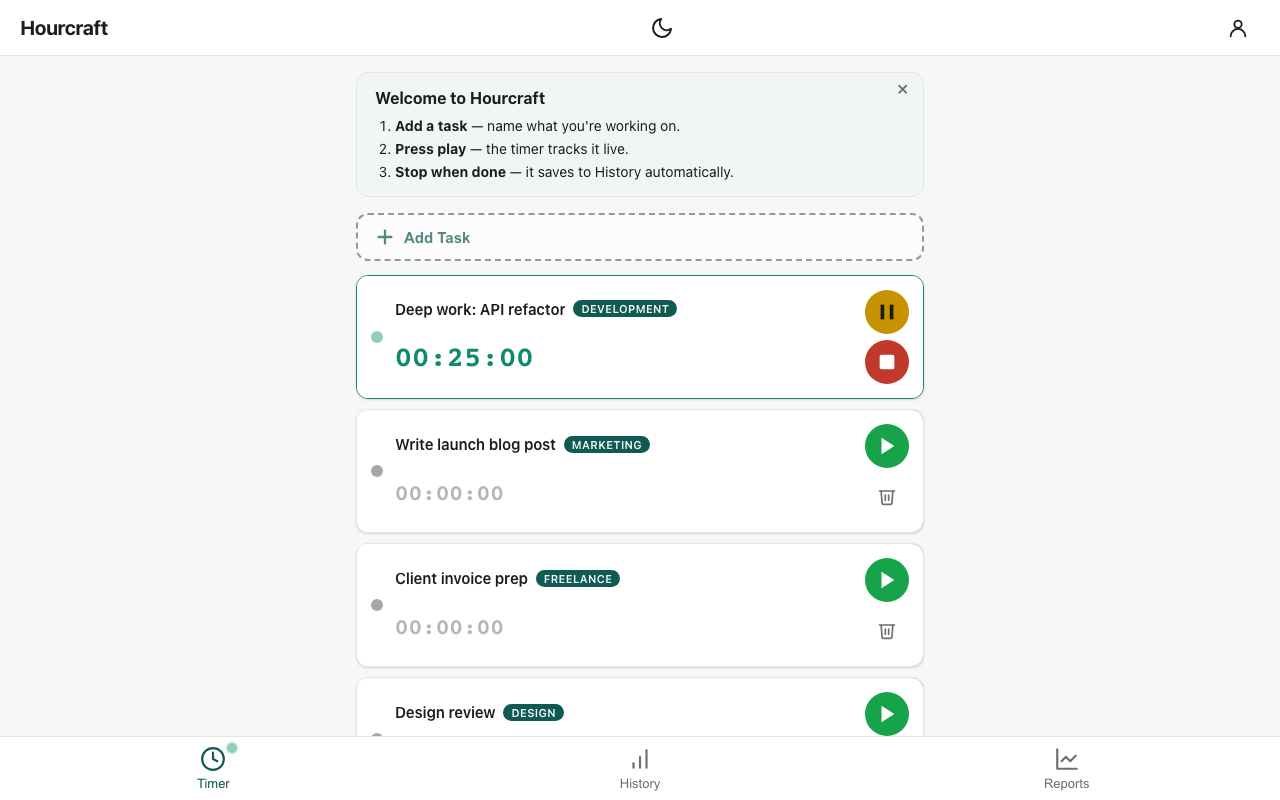
Edge’s sidebar is a narrow column that stays open next to the page, and Hourcraft is designed to fit it: the task list, the running timer, and your history all sit in that column, so you can track a client call, a bug, or a chapter without leaving the page you’re on. The live toolbar badge keeps showing elapsed time even when the sidebar is closed, so a forgotten timer never runs into the night.
One history across Edge, Chrome, the web app, and your phone
Hourcraft on Edge is a complete time tracker on its own — tasks, timers, and history all live in the sidebar, with no account needed. Sign in once and your Edge history, your Chrome history, and your web history at hourcraft.app become one history. Switching browsers, or using Edge at work and Chrome at home, changes nothing about where your hours are kept. Add Pro’s cross-device sync and the running timer travels too: start a task in Edge’s sidebar and watch it counting on the web app or on your phone seconds later.
Already using Hourcraft from the Chrome Web Store in Edge?
Edge installs Chrome Web Store extensions, with a warning about extensions from other stores, and the Chrome build of Hourcraft works there — sign-in included. You don’t need to switch. If you do want the Edge Add-ons build, know that the two are separate installs with separate storage: sign in on the Chrome build first so anything you tracked without an account moves into your account, then remove it and install from Edge Add-ons. Keep one build, not both.
A Pomodoro timer in Edge’s sidebar, too
Free, for everyone: the sidebar doubles as a Pomodoro timer running the classic cycle — 25 minutes of work, a 5-minute break, a longer break every fourth round, with a prompt when each phase ends. Completed cycles are stamped onto the session, so your Pomodoro work shows up in history like everything else. Hourcraft Pro adds custom intervals, an optional chime, and re-chime reminders. New to the method? Here’s how the 25/5 cycle works, and what the evidence says.
Microsoft Edge questions
Where is the sidebar in Edge, and how do I keep Hourcraft in it?
Open Edge’s Extensions hub (the puzzle-piece button on the toolbar) and click the Open in sidebar icon next to Hourcraft. Or choose Show in toolbar first, then right-click the Hourcraft icon and pick Open in sidebar. The sidebar stays docked beside the page while you work. To open it from the keyboard, assign a shortcut to Hourcraft at edge://extensions/shortcuts.
I already installed Hourcraft from the Chrome Web Store in Edge. Do I need the Edge version?
No. The Chrome Web Store build runs in Edge and signs in the same way. The two builds are separate installs with separate storage, so keep one: if you tracked time without an account in one build, sign in there first so it moves into your account, then remove that build. Signing out in either build signs out every session on your account, including the other build.
Does the timer sync between Edge and Chrome?
Your history does, as soon as you sign in on both — every session is saved to your account, whichever browser started it. The running timer itself mirrors across browsers and devices with Pro’s cross-device sync: start a task in Edge’s sidebar and it is counting in Chrome or on your phone seconds later. Pro’s three-category Free limit is per account too, so both builds share it once signed in.
Which versions of Edge does it work in?
Microsoft Edge 114 or later, on Windows, macOS, and Linux — the June 2023 release that added extensions to the sidebar. Edge updates itself, so almost every installation qualifies. There is no Edge for iOS or Android version, because those builds do not run extensions; the Hourcraft web app installs to a phone instead.
What permissions does it need in Edge?
The same four as in Chrome, and nothing site-wide: its own sidebar panel, notifications for the optional Pomodoro phase prompts, one alarm that keeps the toolbar badge counting, and storage for your sign-in. Its only host permission is hourcraft.app. It cannot read your tabs, your browsing history, or the content of any page you visit.
Is the Edge extension free?
Yes — the same Free plan as everywhere else: unlimited tasks and tracked time, the classic 25/5 Pomodoro cycle, up to three categories, and the last seven days of history, with no account needed to start. Pro ($4/month, $29/year, or $59 once) adds cross-device sync, advanced reports, and custom Pomodoro intervals, and is bought on hourcraft.app, never inside the store. Details on the pricing page.